
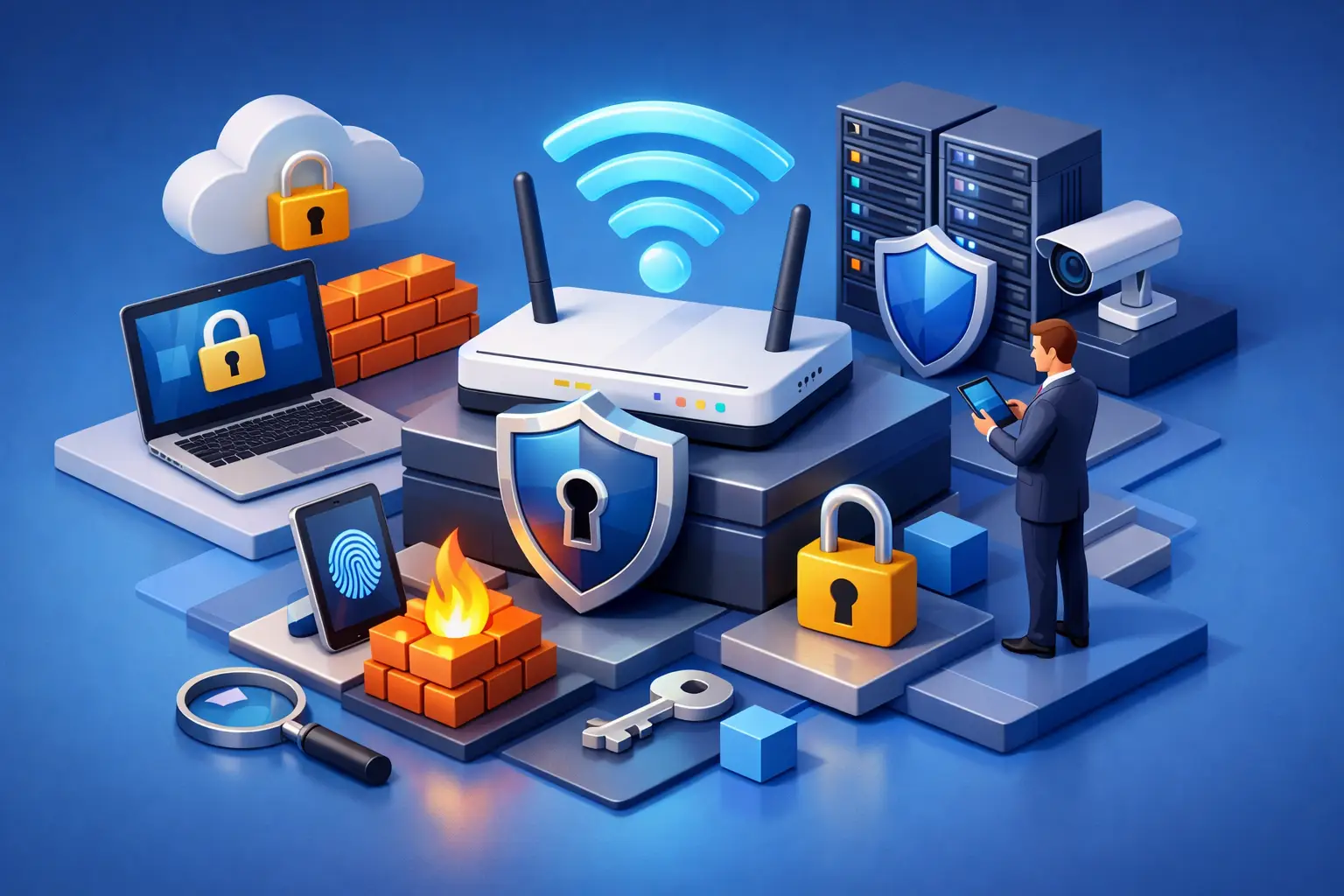
A compromised Wi-Fi network rarely starts with a dramatic break-in. More often, it begins with an old router still using its default password, a guest network that can see office devices, or a former staff member whose access was never removed. Knowing how to secure business Wi-Fi means closing these everyday gaps before they interrupt trading, expose customer information or give attackers a path into your systems.
For an Australian business, Wi-Fi security is part of business continuity. Your team may rely on cloud applications, EFTPOS terminals, VoIP phones, mobile devices, security cameras and smart equipment throughout the day. One poorly secured wireless connection can affect much more than internet access.
How to secure business Wi-Fi: start with the network design
Before changing passwords or buying new hardware, map what is connected and who needs access. A small office may have staff laptops, phones, a printer, a POS terminal and a guest network. A larger or multi-site operation may also have cameras, access-control systems, warehouse devices, meeting-room equipment and remote management tools.
These devices should not all live on the same network. Segmenting Wi-Fi creates separate networks, often called VLANs or SSIDs, for distinct uses. At a minimum, separate staff devices from guest access. Where practical, place payment terminals, IoT devices and critical operational equipment on their own restricted network as well.
Segmentation limits the damage if a device is compromised. A guest browsing the web should not be able to discover an office printer, and a vulnerable smart camera should not have open access to financial records or file servers. The exact setup depends on the size of your operation and the capability of your firewall and wireless equipment, but the principle stays the same: give each device only the access it needs.
1. Use business-grade wireless equipment
Consumer routers can be suitable for a home office, but they often lack the visibility, support and security controls needed in a business environment. Business-grade access points and firewalls provide central management, separate networks, traffic rules, firmware controls and reporting.
For a café, retail shop or small professional office, a managed wireless system can make routine security far easier. For businesses with several locations, cloud-managed access points or SD-WAN can apply consistent policies across sites without requiring someone to configure each device separately.
The right hardware is not always the most expensive hardware. It needs to suit your premises, user numbers, coverage requirements and applications. A warehouse with scanners and roaming staff has different needs from a small accounting practice, particularly when coverage through concrete, metal shelving or multiple floors is involved.
2. Enable WPA3 where possible
Wireless encryption protects data travelling between a device and the Wi-Fi network. WPA3 is the preferred current standard for most business deployments, offering stronger protection than older protocols. If all your devices support it, configure WPA3-Enterprise for staff access.
WPA3-Enterprise uses individual authentication rather than one shared password. This is particularly valuable when staff change roles or leave the business, because access can be removed for one person without changing every device in the office.
Not every older printer, scanner or smart device supports WPA3. In that case, create a separate, tightly restricted network for legacy equipment rather than reducing security across the entire business network. Avoid WEP and WPA wherever possible. They are outdated and should not be relied on for business use.
3. Replace shared passwords with individual access
A single Wi-Fi password written on a whiteboard or handed to every contractor is convenient, but it is difficult to control. Once shared, you cannot know where it has gone or who is using it.
Individual credentials are the better option. Depending on your setup, this may involve a RADIUS server, identity provider or managed authentication service. Each staff member signs in with their own account, and permissions can be linked to their role.
If your business must use a shared password, use a long, unique passphrase generated by a password manager. Change it whenever someone with access leaves, and do not reuse it for router administration, email, cloud services or any other account. Convenience is a real consideration for small teams, but a shared password should be treated as a temporary compromise, not a permanent security model.
4. Secure the router and firewall administration page
Your wireless network is only as secure as the equipment controlling it. Change default administrator usernames and passwords immediately, and use a long, unique password stored in an approved password manager.
Turn on multi-factor authentication for management portals where it is available. Restrict administration to trusted devices or a dedicated management network, rather than allowing anyone on the office Wi-Fi to access the settings page. Remote administration should be disabled unless there is a clear operational need for it.
If remote access is required for support or multi-site management, use secure methods such as a VPN, restricted IP addresses and multi-factor authentication. Review who has administrator access at least quarterly. Your internet provider, IT partner or managed service provider should have only the access required to support the service.
5. Keep firmware and security updates current
Access points, routers and firewalls run software, and like any software, it can contain security vulnerabilities. Vendors release firmware updates to fix those issues, improve stability and add features. Leaving equipment unpatched can expose a business to known attacks that are straightforward to prevent.
Set a regular review schedule for network equipment updates. Some businesses can enable automatic updates, while others need controlled maintenance windows to avoid disrupting specialised applications. The best choice depends on your tolerance for downtime and whether systems such as phones, POS devices or industrial equipment depend on the network.
Do not forget the devices connecting to Wi-Fi. Laptops, mobiles, tablets, printers and cameras all need their own update process. Endpoint protection and device management help ensure a staff member’s laptop does not become the weak point on an otherwise well-configured network.
6. Create a genuinely separate guest network
Guest Wi-Fi is useful for customers, visitors and contractors, but it should be designed for internet access only. Turn on client isolation so guest devices cannot communicate with each other, and block access from the guest network to internal systems.
Use a separate guest password or a captive portal, set sensible bandwidth limits, and review whether guest access needs to run around the clock. In venues where customer Wi-Fi is part of the experience, the network should still be isolated from staff operations, payment systems and security equipment.
This separation also improves performance. A visitor streaming video should not reduce capacity for a cloud phone call, video meeting or critical business application.
7. Apply clear access rules for staff and devices
Wi-Fi security is not only a technical task. Staff need simple rules that are easy to follow: do not share work Wi-Fi credentials with visitors, do not connect unknown devices, and report suspicious pop-ups, lost devices or unexpected network behaviour promptly.
Bring-your-own-device policies should state which personal devices may connect, what security controls apply and what happens when employment ends. In some organisations, personal mobiles can use guest Wi-Fi while managed company devices use the staff network. That approach is often easier to manage than attempting to secure every personal device to the same standard.
Also remove access promptly when staff, contractors or suppliers leave. This should be part of the offboarding process alongside disabling email, cloud and phone-system accounts.
8. Use a firewall with sensible traffic controls
A firewall sits between your network and the internet, monitoring and controlling traffic based on defined rules. It can block known malicious activity, restrict unnecessary connections and help separate internal network segments.
For many businesses, a next-generation firewall with intrusion prevention, web filtering and application control is worthwhile. However, features need to be configured and monitored to provide value. Turning on every setting without considering your business applications can create frustrating outages or lead staff to find workarounds.
Start with a clear policy: block what is not needed, allow approved services, and document exceptions. Review those exceptions over time. A temporary rule for a contractor should not become a permanent opening in your security posture.
9. Monitor the network for unfamiliar activity
You cannot respond to a problem you cannot see. Regularly check connected devices, failed login attempts, unusual bandwidth use and configuration changes. Most managed wireless platforms can show this information in a central dashboard.
Look for devices with unfamiliar names, access points that appear unexpectedly, or traffic spikes outside normal business hours. These signals do not always mean an attack, but they deserve investigation. Keep network configuration backups as well, so you can recover quickly if equipment fails or settings are changed incorrectly.
For businesses without internal IT resources, managed security and network monitoring can provide practical oversight without asking an office manager to become a network specialist. Local support is particularly useful when an issue needs real-world troubleshooting rather than a generic script.
10. Test your response before an incident
Security controls work best when your team knows what to do if something goes wrong. Decide who can disconnect a compromised device, who contacts your IT provider, and how critical services will continue if the primary connection or Wi-Fi network is unavailable.
Test your guest-network isolation and confirm that staff networks cannot access systems they should not. Review backups of firewall and access-point configurations. If your operation depends heavily on connectivity, consider a backup service such as fixed wireless or mobile failover to keep essential services operating during an outage.
A secure wireless network is not a one-off project. It is a practical routine of good equipment, controlled access, regular updates and clear ownership. With the right setup and responsive local support when you need it, your Wi-Fi can remain a dependable part of the business rather than an overlooked risk.